Documentation menu
Install AK FlowBook in NinjaTrader 8
Before you startStep 1: Import the add-onStep 2: Activate your licenseStep 3: Open a GC 1-minute chartStep 4: Add the indicatorStep 5: Wait for the first loadUpdatingRemoving AK FlowBookNext step
After this page you will have AK FlowBook running on a GC 1-minute chart. It takes about ten minutes, plus the first load of history.
Before you start
- NinjaTrader 8, version 8.1.7 or later, is installed and you can open charts. See Requirements.
- Your other NinjaScript files compile without errors. NinjaTrader compiles all custom scripts together, so an error in any one of them can stop every custom indicator from loading.
- You have a backup of your NinjaTrader 8 user folder (
Documents\NinjaTrader 8). This is good practice before you import any add-on.
Step 1: Import the add-on
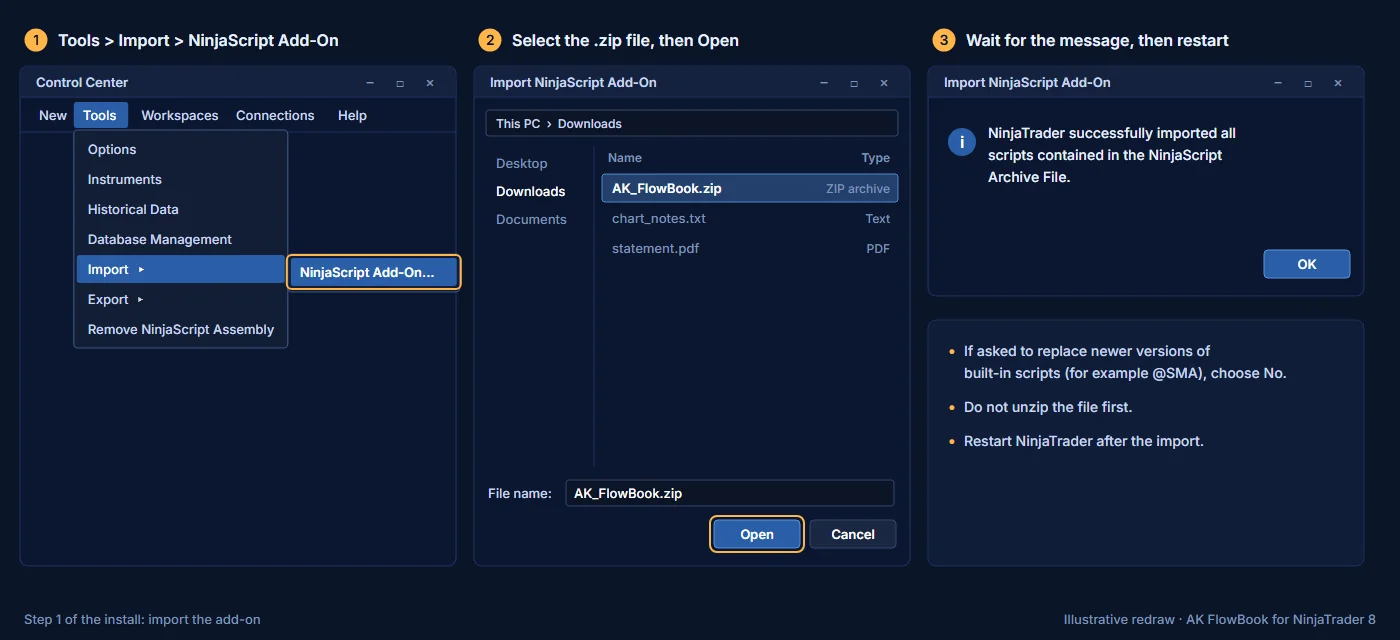
- Save the AK FlowBook
.zipfile to your computer. Do not unzip it. - In the NinjaTrader Control Center, open Tools > Import > NinjaScript Add-On.
- Select the
.zipfile and click Open. - Wait for the message "NinjaTrader successfully imported all scripts contained in the NinjaScript Archive File."
- If NinjaTrader asks whether to replace newer versions of built-in scripts (for example
@SMA), choose No. - Restart NinjaTrader.
Step 2: Activate your license
You receive your file and license after purchase, with the steps to activate it.
Step 3: Open a GC 1-minute chart
- Connect to your data feed. For order-by-order data, use your Rithmic connection.
- In the Control Center, open New > Chart.
- Choose the active GC contract.
- Set the bar type to Minute and the value to 1.
- Load enough days for the levels you want to see. Weekly and monthly levels need more history than daily levels.
- Click OK.
Step 4: Add the indicator
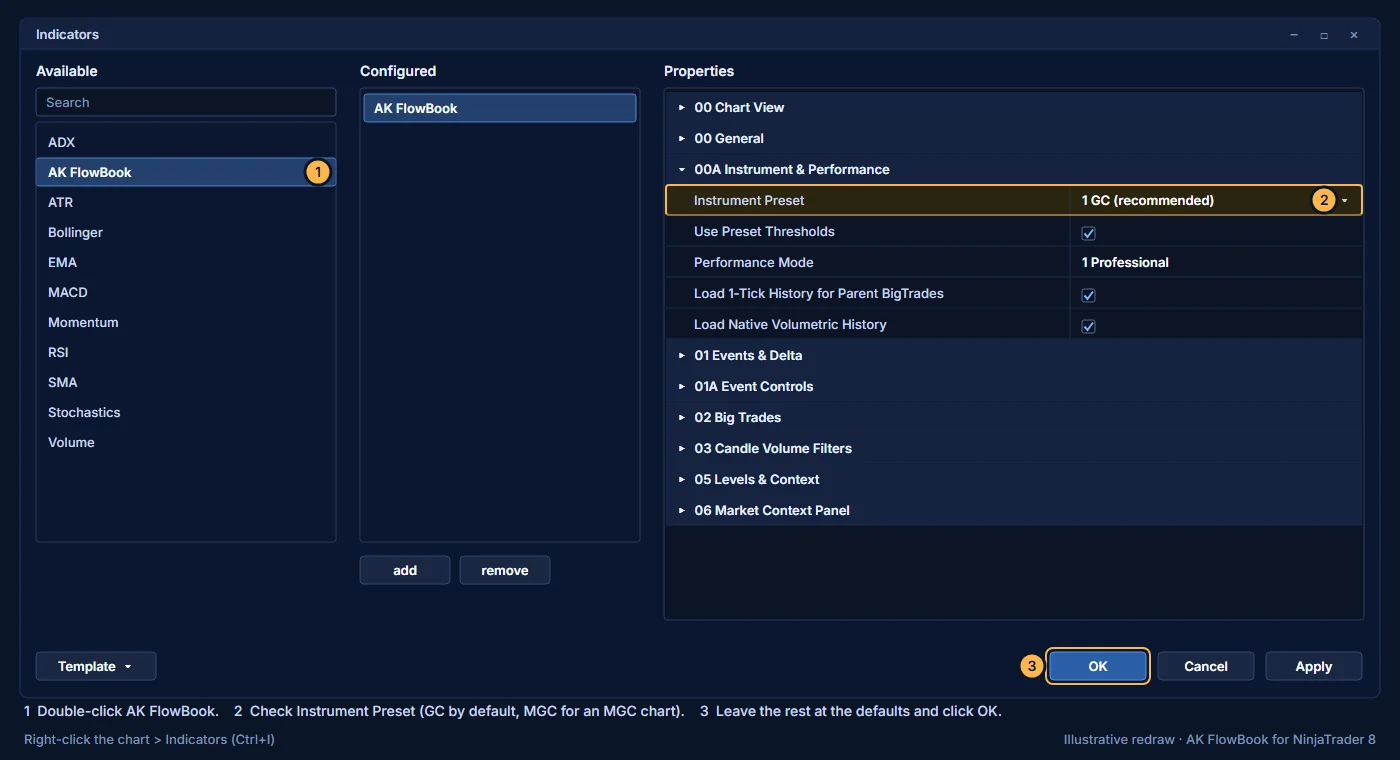
- Right-click the chart and choose Indicators (or press Ctrl+I).
- In the list of available indicators, find AK FlowBook and double-click it.
- Check Instrument Preset. The default is GC. If your chart is MGC, choose MGC.
- Leave the other settings at their defaults for now. The Settings page explains each one.
- Click OK.
Step 5: Wait for the first load
AK FlowBook reads tick and volumetric history before it draws. The first load can take several minutes. When it finishes, you see the toolbar at the top of the chart and the layers of the TRADE view.
Updating
To install a new version, import the new file the same way (Step 1) and restart NinjaTrader. Read the release notes that come with the update.
Removing AK FlowBook
Remove the indicator from your charts in the Indicators window. To uninstall it from NinjaTrader completely, follow the instructions that come with your file.
Next step
Go to the Quick start.
Education only. Not financial advice. Trading futures and CFDs carries a high risk of loss.