Documentation menu
The FlowBook toolbar: every button explained
How the buttons lookPreset viewsLayer buttonsWindow and menu buttonsLive and recomputed marksCommon questions
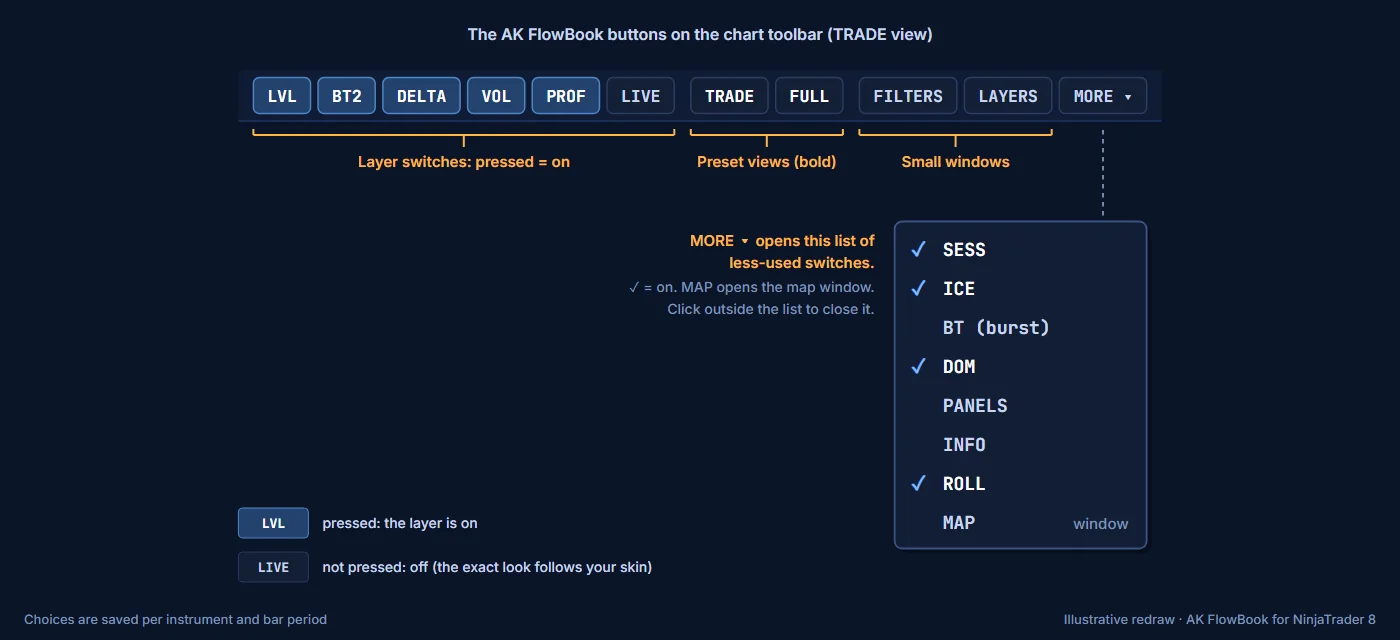
AK FlowBook adds its buttons to the toolbar at the top of the NinjaTrader chart window. Each layer button switches one part of AK FlowBook on or off. Two preset buttons set many layers at once. FILTERS, LAYERS and MAP open small windows, and MORE opens a list of less-used switches.
How the buttons look
- Layer buttons are toggle buttons. A pressed button means the layer is on. The exact look follows your NinjaTrader skin.
- TRADE and FULL are bold. They apply a preset when you click them. They do not stay pressed.
- To keep the row short, some switches sit in the MORE ▾ list: SESS, ICE, BT (burst), DOM, PANELS, INFO, ROLL and MAP. Click outside the list to close it.
The toolbar only changes what is drawn. It does not change how AK FlowBook reads the market. Your choices are saved for each instrument and bar period, so they come back when the chart reloads.
Preset views
| Button | What it does |
|---|---|
| TRADE | The view we recommend. Turns on levels (LVL), session levels (SESS), icebergs (ICE), BT2 dots, delta (DELTA), candle volume filters (VOL), the profile switch (PROF), the MBO Price Map (DOM) and the roll banner (ROLL). Big trade boxes (BT (burst)), event labels, the market context panel (PANELS) and the info line (INFO) start hidden. |
| FULL | A review view that also turns on big trade boxes and event labels. In this version it also draws extra marks that are not part of these docs. Use TRADE, then switch single layers on with their buttons. |
TRADE is also the starting view when you first add AK FlowBook to a chart. The market context panel and the info line are off in both presets. Turn them on with PANELS and INFO.
Layer buttons
| Button | Where | Shows | Details |
|---|---|---|---|
| LVL | Row | Daily, weekly and monthly POC, VAH and VAL, previous and naked levels, HVN and LVN, and the VWAPs with ±1σ and ±2σ bands. | Levels |
| SESS | MORE | Session high and low lines: Asia, London, overnight, New York first hour, New York, prior day and prior New York. | Session levels |
| ICE | MORE | Iceberg lines, birth and break marks, labels such as ICE B 21*, the ◄ tags at the right edge and the small iceberg diamonds. Needs order-by-order data. | Icebergs |
| BT (burst) | MORE | Big trade boxes: a burst of same-side aggressive prints grouped into one box with its total size, plus the Smart role marks. Off in TRADE. | Big trades |
| BT2 | Row | Single aggressive orders, drawn as dots. Larger dots carry the lot count. | Big trades |
| DELTA | Row | Delta numbers on candles, the live value on the forming candle and the DL delta ladder labels. | Delta |
| VOL | Row | Candle volume filters: boxes beside the candle at prices with significant aggressive volume. | Volume filters |
| PROF | Row | The volume profile histogram. In v5.6 the histogram is not drawn, so this button has no visible effect. Profile levels (POC, VAH, VAL) are on LVL. | Levels |
| DOM | MORE | The order book display on the right side of the chart: the MBO Price Map. | MBO Price Map |
| PANELS | MORE | The market context panel in the top-left corner. Off by default. | Context panel |
| INFO | MORE | The info line at the bottom of the chart: activity, spread, order-flow imbalance, basis, news timing and data status. Off by default. | Info line |
| LIVE | Row | Live only. Hides order-flow labels and marks that were recomputed from history and keeps only the ones AK FlowBook saw live. Off by default. | Info line |
| ROLL | MORE | The contract roll banner, shown in the days around a GC contract roll. | Info line |
Window and menu buttons
| Button | Where | What it opens |
|---|---|---|
| FILTERS | Row | The display filter window. Set the minimum delta for a label, the minimum lots for big trade boxes and the sizes of the five volume tiers. A value of 0 means AK FlowBook uses its own value, which the window shows next to each field. A delta value below the Minimum Delta setting only affects the live number on the forming candle. Click Apply. These filters change the display only. |
| LAYERS | Row | A small window with check boxes for BT2, BT (burst), ROLL and LIVE, and the BT2 lot minimums: the smallest order drawn as a dot (20 lots by default) and the smallest order that gets a lot label (50 lots by default). Click Apply. |
| MAP | MORE | The MBO Price Map window: how the map looks during a fast market (hidden, light or full), which badges are shown, the STALE header tag, the minimum lots for the B2 badge and the STALE time limit. Changes apply live. |
| MORE ▾ | Row | The list of less-used switches named above. |
Live and recomputed marks
When you open a chart, AK FlowBook recomputes marks for the history it loads. Marks from then on are seen live. A dashed vertical line, <- RECOMPUTED | LIVE ->, shows where the switch happened. Turn on LIVE to see only the marks that were seen live.
Common questions
- The chart is empty after I added the indicator. Click TRADE.
- I cannot see big trade boxes. They are hidden in the TRADE view. Open MORE and click BT (burst).
- I cannot see the context panel or the info line. Open MORE and click PANELS or INFO.
- I cannot see icebergs. Open MORE and check that ICE is on, and check that the map header shows
NATIVE_MBO. Icebergs need order-by-order data.
Education only. Not financial advice. Trading futures and CFDs carries a high risk of loss.